

The Best IPTV Service Provider 2026
Experience the future of streaming. 25,000+ Live Channels, VOD, and Premium Sports in 4K UHD.
No Buffering. No Contracts. Just entertainment.







Every Channel You Can Imagine.
All in One Place.
Stop switching between apps. With our IPTV subscription, you get access to every major network in the USA, UK, Canada, and Latino regions. We cover everything from breaking news to kids' cartoons.
- Premium Sports: NFL, NBA, MLB, NHL, Premier League & Pay-Per-View (UFC, Boxing) included.
- News & Locals: FOX News, CNN, MSNBC, BBC, and your local regional news stations.
- Entertainment: HBO, TNT, AMC, Bravo, HGTV, Discovery and more.
- International: Over 110 countries supported in native languages.
Unlimited Entertainment
From the biggest global sporting events to tonight's movie night, we have it all.

Breaking News & Local TV
Stay informed with the best IPTV Service for news fans. Get 24/7 access to top USA channels like FOX News, CNN, MSNBC, and BBC, plus all your local ABC, CBS, and NBC affiliates. Experience crystal-clear international reporting and local updates with zero delay.
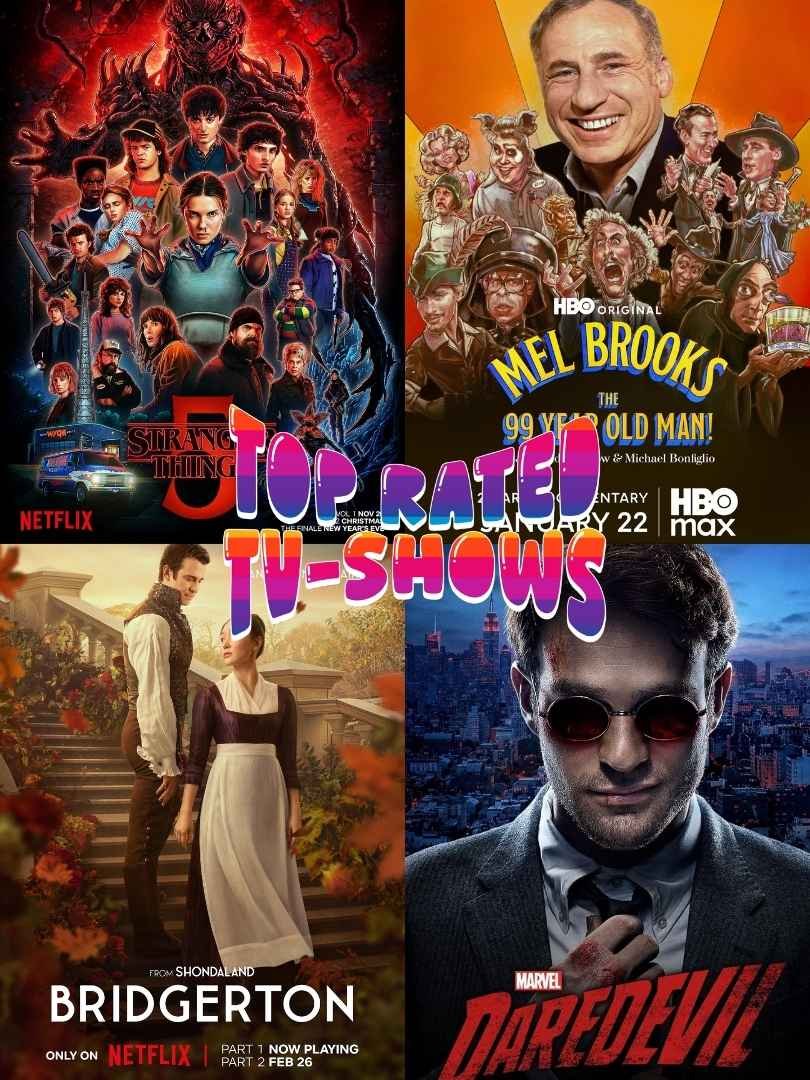
Binge-Worthy TV Shows
Missed an episode? No problem. Our Video-On-Demand library is updated daily with the latest seasons of your favorite series from Netflix, Hulu, and HBO.

Pro Sports Pass
Sunday Night Football, Premier League Soccer, NASCAR, and the Kentucky Derby. If it's live, it's on our service. No blackouts, ever.
How To Get Started
We make it simple. You could be watching in less than 5 minutes.
Choose Your Plan
Select the subscription that fits your needs below. We recommend the 12-month plan for the best value.
Secure Payment
Complete your purchase securely. We accept major Credit Cards and Crypto for instant verification.
Get Credentials
We instantly send your username, password, and setup URL via Email and WhatsApp. Login and enjoy!
Try It Free for 24 Hours
Test the Best IPTV Service with full access to live channels, sports, and VOD. No contracts. No long-term commitment. Experience everything before you subscribe.
Activate Free TrialSelect Your Plan
Choose one of our packages below and enjoy secure payments via credit cards or PayPal.
Starter
- Support All Devices
- Full EPG Guide
- Catch-up (available)
- Quality: 4K UHD, FHD
- 23,000+ Live Channels
- 145,000+ VODs
- PPV & Sports (UFC, NFL)
- CTV, CBC, TSN, CityTv
- Free Setup Assistance
Smart
- Support All Devices
- Full EPG Guide
- Catch-up (available)
- Quality: 4K UHD, FHD
- 23,000+ Live Channels
- 145,000+ VODs
- PPV & Sports (UFC, NFL)
- CTV, CBC, TSN, CityTv
- Free Setup Assistance
Premium
- Support All Devices
- Full EPG Guide
- Catch-up (available)
- Quality: 4K UHD, FHD
- 23,000+ Live Channels
- 145,000+ VODs
- PPV & Sports (UFC, NFL)
- CTV, CBC, TSN, CityTv
- Free Setup Assistance
Pro Annual
- Support All Devices
- Full EPG Guide
- Catch-up (available)
- Quality: 4K UHD, FHD
- 23,000+ Live Channels
- 145,000+ VODs
- PPV & Sports (UFC, NFL)
- CTV, CBC, TSN, CityTv
- Free Setup Assistance
Ultimate 2-Year
- Support All Devices
- Full EPG Guide
- Catch-up (available)
- Quality: 4K UHD, FHD
- 23,000+ Live Channels
- 145,000+ VODs
- PPV & Sports (UFC, NFL)
- CTV, CBC, TSN, CityTv
- Free Setup Assistance
The #1 Best IPTV Service Provider of 2026
Join thousands of viewers using the most reliable IPTV subscription. We provide premium access to 4K UHD, FHD, and HD streams without the heavy price tag of cable.
Premium IPTV Providers
Unlike budget IPTV services, we invest in high-bandwidth local servers to ensure 99.9% uptime for all major US, UK, and CA channels.
Lag-Free IPTV Stream
Experience zero-buffering technology. Our IPTV stream is optimized for 4K UHD and FHD, ensuring smooth action for live sports and PPV events.
Universal Compatibility
One IPTV subscription, all your devices. From Firestick and Android TV to iOS and Mag boxes, setup takes less than 2 minutes.
Why Choose Our Annual Plan?
| Our Annual Plan | Buying Separately |
|---|---|
$55 / Year
Total annual cost
|
$1,400+ / Year
Combined subscription costs
|
What Our Customers Say
"The 4K quality is genuine. I watched the NFL games last night and it didn't buffer once. Best decision to cut the cable.
David M."I was worried about setup, but their WhatsApp support sent my login details instantly and helped me install it on my Firestick in 5 minutes.
Sarah L."The EPG guide is so clean. It feels like regular TV but with 10x more channels. The VOD section has every movie I could want.
James R."The 12-month plan is a steal. I'm saving over $100 a month compared to my old provider. High quality and reliable.
Michael T.Frequently Asked Questions
Go to Settings > My Fire TV > Developer Options. Turn on “Apps from Unknown Sources” and ensure “Install Unknown Apps” is enabled for Downloader.
Step 2: Install the Downloader App
On the Firestick home screen, go to the Search icon (magnifying glass) and type “Downloader”. Install the Downloader app from the Amazon Appstore.
Step 3: Download IPTV Smarters Pro
Open the Downloader app. Enter the URL: https://www.iptvsmarters.com/smarters.apk and click Go. Wait for the APK to download.
Step 4: Install IPTV Smarters Pro
Once download completes, click Install. After installation, click Done. A prompt will appear asking to delete the APK file – click Delete twice to free up space.
Step 5: Post-Installation Setup
Launch IPTV Smarters Pro from your Apps & Channels section. Accept the terms and conditions. Click “Add New User” and choose your login method:
- M3U Playlist URL: Select “Load Playlist”, enter your M3U URL, provide a name, and click “Add User”.
- Xtream Codes API: Select “Xtream Codes API”, input your credentials (server, username, password), and click “Add User”.
Additional Tips:
- Use a VPN (like ExpressVPN) for enhanced privacy and to bypass ISP throttling.
- Move the app to your home screen for quick access.
- Create a favorites list for frequently watched channels.
- Ensure your internet speed is adequate for streaming (25+ Mbps for 4K).
Go to Settings > My Fire TV > Developer Options. Turn on “Apps from Unknown Sources”.
Step 2: Install Downloader
Search for “Downloader” on the Firestick home screen and install it.
Step 3: Download and Install TiviMate APK
Open Downloader, enter URL: https://bit.ly/3XNaNze and click Go. Once the APK downloads, click Install. After installation, delete the APK file to save space.
Step 4: Set Up TiviMate
Launch TiviMate. Select “Add Playlist”. Choose playlist type: M3U Playlist, Xtream Codes, or Stalker Portal (use the one provided by us). Enter the URL or credentials. Wait for channels to load.
Step 5 (Optional): Unlock TiviMate Premium
Install TiviMate Companion on an Android device from Google Play. Create an account and purchase subscription. On Firestick, go to TiviMate settings > Unlock Premium and log in with the same account.
Troubleshooting Tips:
- If you experience buffering, check your internet connection or try a VPN.
- If the app doesn’t open, clear the app cache or reinstall.
From the Firestick home screen, go to Search, type “Downloader” and install it.
Step 2: Enable Apps from Unknown Sources
Go to Settings > My Fire TV > Developer Options > turn on “Apps from Unknown Sources” for Downloader.
Step 3: Download IBO Player
Open Downloader, click Allow then OK. Enter URL: https://ibodesk.com/media.apk and click Go. Wait for download then click Install. After installation, click Done.
Step 4: Set Up IBO Player
Launch IBO Player. Note the Device ID and Device Key displayed.
Visit IBO Player Activation website on your phone/computer. Enter Device ID, Device Key, your email, accept terms, and click “Activate Now”.
Step 5: Add Playlist
Go back to IBO Player, navigate to Manage Playlists. Enter your MAC address and Device Key, then add your M3U playlist URL. Restart if needed.
Note: The app has a 7‑day trial; after that a one‑time fee applies.
Install Downloader (Search > “Downloader”) and enable Apps from Unknown Sources as described above.
Step 2: Download IPTV Smarters Pro
Open Downloader, enter code 59481 (the APK download code). Wait for download, then install.
Step 3: Open IPTV Smarters
Select “Login with Xtream Codes API”. Enter the login details we sent you via Email or Chat.
Step 4: Cast to TV
Use your smartphone’s screen mirroring or casting feature (like AirPlay or Google Cast) to mirror the app to your TV. Alternatively, install the same app on your phone and use the built‑in cast option.
On your Roku remote, press: Home 3 times, Up twice, Right, Left, Right, Left, Right. The Developer Options menu appears. Select “Enable Developer Mode” and create a password. Write down the IP address shown.
Download IPTV Smarters:
On your computer, download the latest IPTV Smarters installation file from a trusted source.
Install on Roku:
Open a web browser and type: http://[your Roku IP]:8060. Login with username “rokudev” and the password you set. Click “Upload”, select the downloaded file, and click “Install”.
Configure IPTV Subscription:
Open the IPTV Smarters channel on Roku. Select “+ Add User” and enter the portal URL, username, and password provided by us. Click “Add User”.
Optimization Tips:
- Ensure at least 9 Mbps for HD, 25 Mbps for 4K.
- Use Ethernet if possible.
- Adjust video settings if buffering occurs.
Go to the Roku Channel Store, search for “IBO Player Pro”, and select “Add Channel”.
Step 2: Activate IBO Player
Open the IBO Player Pro app on Roku. Click “Account” to see the activation screen with your MAC Address and Device Key.
Step 3: Link Your Device
On your mobile device or computer, visit IBO Pro App website. Click “Manage Playlists”, enter the MAC Address and Device Key, and click “Login”.
Step 4: Add Your IPTV Playlist
Click “Add XC Playlist”. Enter a name for the playlist, then input the Xtream Codes credentials (Server address, Username, Password) provided by us. Click “Submit”.
Step 5: Enjoy
Return to Roku; you may need to restart the app. Note the 7‑day trial, then a one‑time fee applies.
Turn on TV, press Smart Hub button. Search for “IPTV Smarters Pro”. Select and install the app. Open it, accept the terms. Enter your IPTV subscription credentials (server URL, username, password) provided by us. The app will connect and load channels.
LG Smart TV:
Press Home button to launch LG Content Store. Search for “IPTV Smarters Pro”. Install and open the app. Enter your subscription details, allow verification, and start streaming.
Install from app store (Smart Hub or LG Content Store). Open app, note your TV’s MAC address. On your computer, visit Smart IPTV website, go to “My List”, enter MAC address and upload your M3U playlist or Xtream Codes. Restart the app.
Flix IPTV:
Install Flix IPTV from app store. Open app, go to “Activation”, enter the activation code. Visit Flix IPTV website to activate and upload your playlist.
IBO Player:
Install IBO Player from app store. Open it, note Device ID and Key. Visit IBO Player website, register device, upload playlist.
Visit http://web.ip365.cx/ and enter the username and password we provided to you. That’s it – start watching instantly.
Alternative – VLC Media Player:
1. Download VLC from https://www.videolan.org/vlc/index.html.
2. Open VLC Player.
3. Go to Media -> Open Network Stream.
4. Paste your Subscription M3U URL (sent via email) and press Play.
5. Wait for channels to load (may take a few moments).
6. If you face any issues, contact our WhatsApp support for assistance.
- IPTV Smarters Pro (select Xtream Codes API)
- GSE IPTV (select Xtream Codes API)
- ELK Player
- IPTVX
After installing, open the app and choose Xtream Codes API (XC API). Enter your Name, Login, Password, and URL (the credentials we sent you). Tap Add User.
For Apple TV, the process is identical. If you encounter any issues, our WhatsApp support team is ready to help.
- IPTV Smarters Pro (may appear as “Smarters Player Lite”)
- DUPLEX play
- IBO Player
- Flix IPTV
- SET IPTV
- ELK Player
- Nanomid
(Avoid Smart IPV, Smart STB, and STB Emu – they are less reliable.)
After installing, open the app and select Xtream Codes API. Enter your Name, Login, Password, and URL (provided by us). Click Add User. For any issues, WhatsApp support is available.
Step 2: Open the app – you will see your ‘MAC address’ on screen.
Step 3: Tap near the top‑right corner, then click Settings (the 4th icon from right).
Step 4: Tap Profiles. Choose “Test portal” to modify existing profile or “Add profile” to create a new one.
Step 5: Tap “STB Model” and select MAG 250 (or whichever you prefer).
Step 6: Tap “Portal settings” and enter your Portal URL (from your activation email). Click OK.
Step 7: Tap “Screen Resolution”. Choose 1280×720 (or higher if your internet speed is 16+ Mbps).
Step 8: Exit the app and restart. Your channel list should appear.
Troubleshooting: If channels don’t load, restart the app, device, and router.
Step 1: Go to Settings → System Settings → Servers → Portals.
Step 2: Set Portal 1 name (e.g., “IPTV Shop”) and Portal 1 URL (see your email).
Step 3: Leave Portal 2 empty (unless you have a second subscription).
Step 4: Save everything and reboot the device.
Step 5: After reboot, wait for the TV screen to display the channels.
For any issues, contact our WhatsApp support.
Step 2: Go to Formuler app store, install MyTVOnline, MyTVOnline 2, or MyTVOnline 3 (depending on model).
Step 3 – For MyTVOnline: Open app, note the MAC address displayed. Provide this MAC address to us. Then click Edit, enter Portal Nickname (e.g., “MYIPTV”) and Portal URL (provided by us). Click OK.
Step 3 – For MyTVOnline 2: Choose “Add Portal” or “Add m3u Playlist”. If Add Portal, enter Portal Name, URL, enable “Login required”, enter Username and Password, click Connect. If Add m3u, enter Playlist Nickname, URL, and optionally VOD URL and EPG URL, then Connect.
Step 3 – For MyTVOnline 3 (Z11 Pro Max and later): Select “Add Portal”, enter Portal Name and URL, enable “Login required”, enter Username and Password, click Connect.
Step 4: Ensure your Formuler firmware is up to date for best performance.
Plug BuzzTV into HDMI, connect power, and ensure the IR sensor is positioned correctly.
Step 2: Initial Setup
Turn on TV, select the HDMI input. Use remote to navigate the interface.
Step 3: Access BuzzTV Settings
From main menu, go to Settings.
Step 4: Configure IPTV Server
In Settings, select Servers. Enter the Server URL provided by us. Assign a name (e.g., “Our IPTV Service”). If required, enter Username and Password.
Step 5: Connect
After entering details, click Connect. Channels will load automatically; select any channel to start streaming.
Additional Info:
- BuzzTV 4 App is pre‑installed and handles M3U and Xtream formats efficiently.
- Supports 4K streaming with fast channel switching.
Troubleshooting:
- Ensure stable internet (Ethernet preferred).
- Restart BuzzTV and router if issues persist.
- For persistent problems, contact our support with your MAC address.
Need Help? We're Here 24/7
Our friendly support team is available around the clock. We usually respond within an hour, and we assist you for the entire length of your package.
support@ottaips.com · WhatsApp: +44 7861 393122
From 5 minutes to 24 hours, we've got you covered. Whether you need help customizing your channel playlist,
can't find your favorite movies, or have any issue with your IPTV or TV – we're here for you.
Our support is friendly and easy, perfect for beginners and seniors alike.